
A complete guide for creators — from planning to publishing
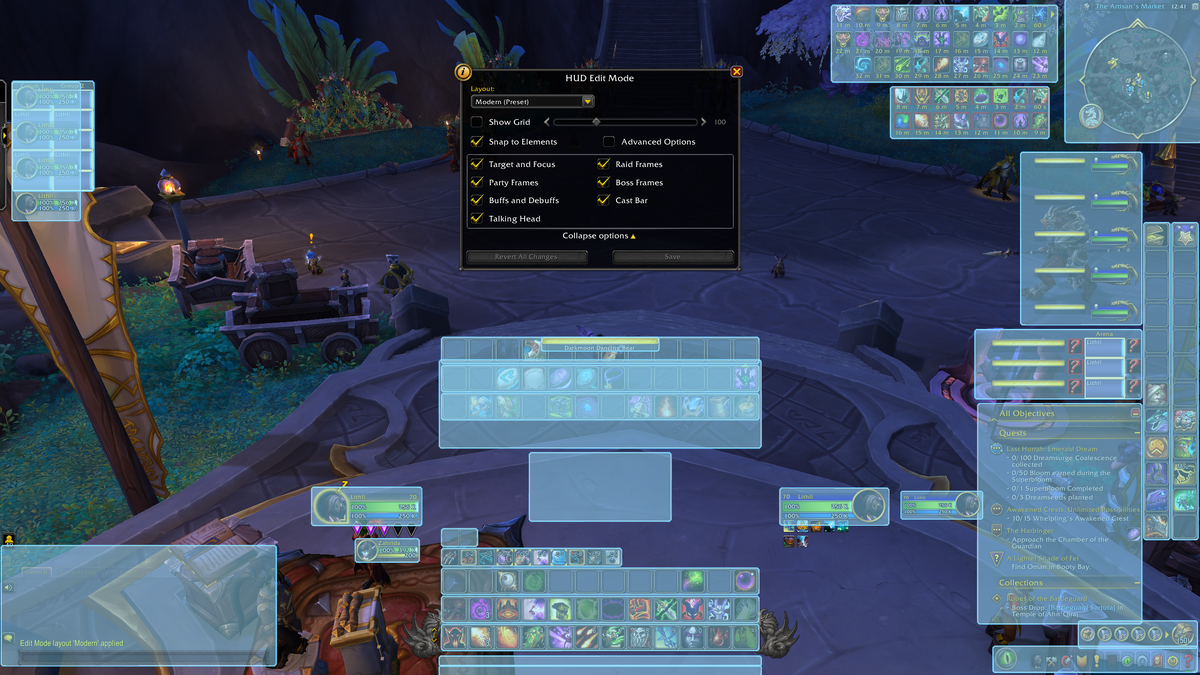
Creating a UI Pack is one of the best ways to share your interface vision with the WoW Classic community. Whether you want something minimalist, immersive, or raid-oriented, this guide walks you step-by-step through the entire process.
What Is a UI Pack?
A UI Pack is a curated collection of:
- WoW addons
- Saved variables
- Layout profiles
- Textures, fonts, and optional WeakAuras
- Installation instructions
A good UI Pack is not just “a folder of addons” — it is a ready-to-use interface experience with consistent design and clear documentation.
Preparing Your UI Pack
1. Choose a Theme
Think about the style you want to create:
- Minimalist – clean lines, low clutter, neutral colors
- Immersive – fantasy textures, lore style, dark UI
- Raiding – high visibility, cooldown clarity, healing/rotation focus
- PvP – enemy awareness, class tracking, battleground tools
- Class-Specific – tailored layouts for each class
Document your design goals — it will help users understand your intent.
2. Clean Your Addon Setup
To avoid shipping unwanted files:
- Delete unused addons
- Log into a character
- Adjust all settings until the UI looks and functions exactly as intended
- Reload the UI (
/reload) - Log out cleanly (important for saved variables)
3. Export All Configurations
You must include configurations so that users install your UI exactly as you built it.
A. Addon Profiles
For addons like:
- ElvUI
- TukUI
- Bartender
- WeakAuras
- Plater
- Details
- Weakauras
Export profiles using their Export button or/wa export.
B. Saved Variables
Many addons store settings in:
_WTF/Account/<ACCOUNT_NAME>/SavedVariables/*.luaYou will include only the files needed (more below).
C. Layout screenshots
Provide at least 2–3 screenshots:
- Full combat view
- Clean UI layout
- Optional: class-specific modules
These are used for the UI Pack page and troubleshooting.
Building the Folder Structure
We recommend this structure:
/YourUIPackName
    /Addons
        (all .zip or raw folders of your addons)
    /SavedVariables
        *.lua files for your profiles
    installation-guide.txt
    pack-info.json
    screenshots/
        preview1.jpg
        preview2.jpg
pack-info.json example:
{
  "name": "Minimalist Gray UI",
  "author": "YourName",
  "version": "1.0",
  "wow_version": "Mists of Pandaria Classic",
  "categories": ["Minimalist", "Raid"],
  "recommended_resolution": "1920x1080",
  "addons_used": [
    "ElvUI",
    "WeakAuras",
    "Plater",
    "Details",
    "OmniCD",
    "DBM"
  ]
}
Writing the Installation Guide
Include a clear, beginner-friendly guide. Here is a template you can use:
Installation Instructions
Step 1 — Download the UI Pack
Download the .zip file and extract it on your computer.
Step 2 — Install the Addons
Copy the contents of /Addons into:
_World of Warcraft/_classic_/Interface/AddOns/Step 3 — Install Saved Variables
Copy the contents of /SavedVariables into:
_World of Warcraft/_classic_/WTF/Account/<YOUR_ACCOUNT>/SavedVariables/Step 4 — Start the Game
Log into your character.
Step 5 — Apply Addon Profiles
Import profiles in:
- ElvUI → Profiles → Import
- WeakAuras → Import
- Details → Import/Copy
- Plater → Profiles → Import
Step 6 — Reload UI
Type:
/reloadTesting Checklist
Before publishing, test your UI Pack with this checklist:
✔ Works on a fresh character
✔ Works with a brand-new WTF folder
✔ No missing addons
✔ WeakAuras are correctly linked
✔ Profile imports do not error
✔ Layout works at 1080p (minimum recommended)
✔ Screenshots match final look
✔ Load time is reasonable
Submitting Your UI Pack to WoWClassicUI
To publish your pack:
- Visit /submit-ui-pack
- Upload your
.zip - Provide:
- Title
- Author name
- Description
- Screenshots
- Version number
- List of addons included
- Installation notes
- Our team verifies:
- Folder structure
- No malicious files
- Clear descriptions
- Profile functionality
Once approved, your UI Pack appears on:
Updating Your Pack
When WoW Classic updates:
- Update your screenshots
- Re-export addon profiles
- Increment version number
- Add changelog (recommended)
Best Practices for Creators
⭐ Keep it lightweight
Avoid shipping 80+ addons — users appreciate performance.
⭐ Keep it beautiful
Consistent colors, spacing, fonts, and icon sizes matter.
⭐ Keep it documented
A UI Pack with clear instructions gets 10× more installs.
⭐ Keep it updated
Popular packs stay visible because creators maintain them.











Leave a Reply
You must be logged in to post a comment.