Category: Guides

  • TBC Classic Anniversary — PvE DPS Tier List (Phase 1)

    TBC Classic Anniversary — PvE DPS Tier List (Phase 1)

    With The Burning Crusade Classic Anniversary now live, many players are asking the same question: “What are the best PvE DPS specs in TBC?”

    In this article, we break down the PvE DPS tier list for Phase 1 (Gruul’s Lair & Magtheridon), based on both practical raid performance and real-world data from Warcraft Logs (top 10% parses). While raw damage matters, raid utility and composition are just as important in TBC, so we also take that into account when ranking each specialization.

    ⚠️ Important note: This tier list focuses strictly on PvE raid performance at level 70. It does not consider PvP viability, boosting, or 5-man dungeons.


    How the tiers work?

    We use the following ranking system:

    • 🟣 S Tier – Exceptional specialization with top-tier damage and/or indispensable raid utility.
    • 🔵 A Tier – Very strong specialization with solid damage and meaningful raid contribution.
    • 🟡 B Tier – Decent performer, often valued more for utility than raw DPS.
    • 🔴 C Tier – Weak DPS performance in raids; playable but rarely optimal.

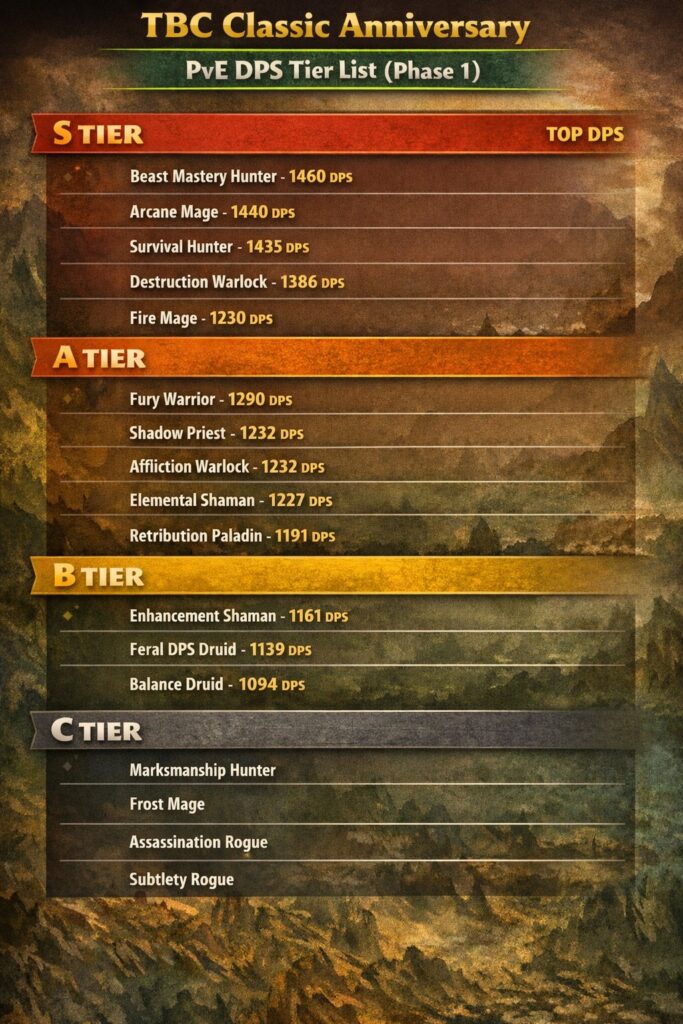
    PvE DPS Tier List – Phase 1 (TBC Anniversary)

    🟣 S Tier (Top Performers)

    These specs dominate damage meters or bring critical raid value.

    • Beast Mastery Hunter1460 DPS
      The strongest overall DPS in Phase 1. High damage, excellent scaling, and reliable performance on almost every encounter.
    • Arcane Mage1440 DPS
      Incredible burst damage and excellent mana efficiency in early TBC raids.
    • Survival Hunter1435 DPS
      Slightly behind BM but still extremely powerful, especially with proper raid buffs.
    • Destruction Warlock1386 DPS
      Strong sustained DPS with great cleave potential and excellent raid utility.
    • Fire Mage1230 DPS
      Competitive damage with great scaling and reliable performance.

    🔵 A Tier (Very Strong Choices)

    High-performing specs that contribute well to raids.

    • Fury Warrior1290 DPS
      Classic warrior scaling with excellent single-target damage.
    • Affliction Warlock1232 DPS
      Strong sustained damage, especially on longer fights.
    • Shadow Priest1232 DPS
      Not the top DPS, but absolutely essential for mana regeneration via Vampiric Touch — many raids bring at least one.
    • Elemental Shaman1227 DPS
      Solid ranged DPS with valuable raid buffs.
    • Arms Warrior1220 DPS
      Slightly behind Fury but still a viable choice.
    • Retribution Paladin1191 DPS
      Lower raw DPS, but excellent utility with buffs like Sanctity Aura.
    • Combat Rogue1170 DPS
      Reliable melee DPS with good raid presence.

    🟡 B Tier (Situational / Utility-Focused)

    Playable, but not optimal purely for damage.

    • Enhancement Shaman1161 DPS
      Decent damage, but shines more for Windfury and group utility.
    • Feral DPS Druid1139 DPS
      Useful hybrid, but often better as a tank or healer in raids.
    • Balance Druid1094 DPS
      Brings Innervate and utility, but falls behind in pure DPS.

    🔴 C Tier (Struggles in Raids)

    These specs can work, but are rarely ideal in Phase 1.

    • Marksmanship HunterNot in top rankings
      Strong in PvP, weak in early TBC PvE.
    • Frost MageNot in top rankings
      Great control, but poor raid DPS compared to Fire/Arcane.
    • Assassination RogueNot in top rankings
      Falls behind Combat in most raid scenarios.
    • Subtlety RogueNot in top rankings
      Primarily a PvP spec in TBC.

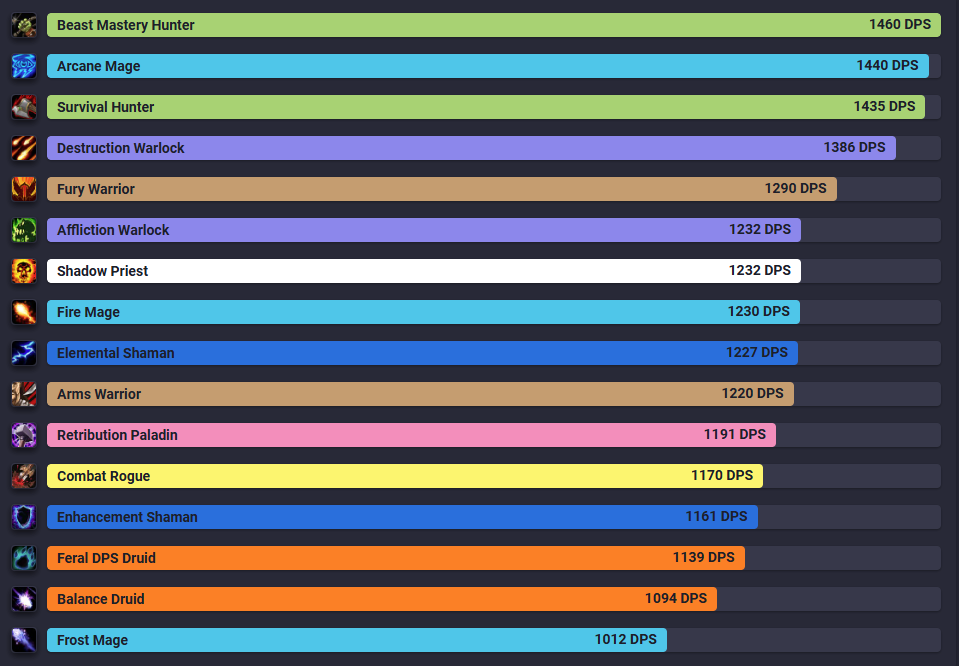
    Phase 1 DPS Ranking Snapshot (Top 10% Parses)

    For reference, here are the Warcraft Logs Phase 1 DPS rankings (top 10%) for Gruul’s Lair & Magtheridon:

    1. Beast Mastery Hunter — 1460 DPS
    2. Arcane Mage — 1440 DPS
    3. Survival Hunter — 1435 DPS
    4. Destruction Warlock — 1386 DPS
    5. Fury Warrior — 1290 DPS
    6. Affliction Warlock — 1232 DPS
    7. Shadow Priest — 1232 DPS
    8. Fire Mage — 1230 DPS
    9. Elemental Shaman — 1227 DPS
    10. Arms Warrior — 1220 DPS
    11. Retribution Paladin — 1191 DPS
    12. Combat Rogue — 1170 DPS
    13. Enhancement Shaman — 1161 DPS
    14. Feral DPS Druid — 1139 DPS
    15. Balance Druid — 1094 DPS

    Read more on WOWTBC.GG – TBC Classic Best DPS Rankings.


    Final Thoughts

    In TBC Classic Anniversary, raid composition matters just as much as raw DPS. Specs like Shadow Priest, Enhancement Shaman, and Retribution Paladin may not top the meters, but they can be invaluable for raid performance.

    If you want to push maximum damage in Phase 1, your best bets are:

    👉 Beast Mastery Hunter, Arcane Mage, Survival Hunter, or Destruction Warlock.

  • WoW Extra Action Button Macro Guide (Cata, MoP, Retail)

    WoW Extra Action Button Macro Guide (Cata, MoP, Retail)

    The Extra Action Button is one of the most useful — and most forgotten — UI features in WoW Classic (and also Retail).
    It appears during special encounters, quests and boss mechanics, and being able to trigger it instantly with a macro can noticeably improve your gameplay.

    Whether you’re playing Cata, MoP or Retail, this guide shows you how to control the Extra Action Button properly.


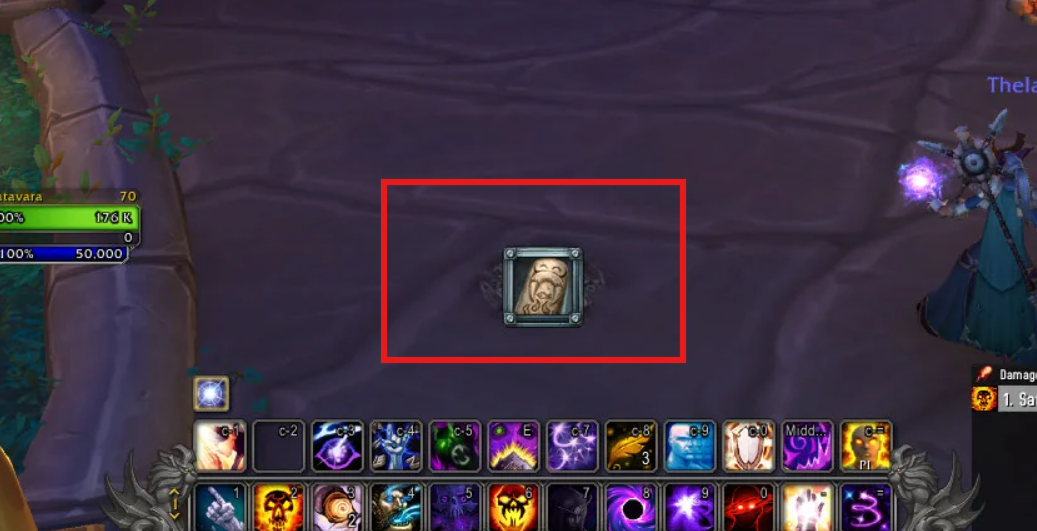
    What Is the Extra Action Button?

    You’ve seen it before: that large glowing button that suddenly appears in the middle of your screen during certain mechanics.
    It shows up in vehicle quests, raid encounters, special events and a lot of boss abilities — many modern Classic mechanics.

    Instead of hunting for it with your mouse every time, you can trigger it instantly with a macro.


    The Essential Extra Action Button Macro

    Here’s the macro you need:

    #showtooltip
    /click ExtraActionButton1

    Place it on your action bar and bind it to a comfortable key. Once you start using it, you’ll never want to play without it again.


    Why This Macro Matters

    Using this macro removes unnecessary mouse movement, improves reaction time, and makes your performance far more consistent — especially in raids where missing a single mechanic can cause a wipe.
    It also keeps your UI cleaner and your focus where it should be: on the fight.


    Compatibility

    This macro works perfectly in all the game versions that provides the Extra Action Button:

    • Wrath Classic,
    • Cata Classic,
    • Mist of Pandaria Classic,
    • and Retail.

    No addons required.


    Hiding the Extra Action Button From Your UI

    If you’re using the macro, you may no longer want the giant Extra Action Button taking space in the middle of your screen.
    You can safely hide it with a small UI script.

    Open your chat box and paste:

    /run ExtraActionBarFrame:Hide()

    That’s it — the button will disappear from your UI, while the macro will continue to work normally.

    If you ever want it back:

    /run ExtraActionBarFrame:Show()

    This is especially useful for players building clean raid UIs or minimalist setups.

    Tip: You can put these commands into a macro called Hide Extra Button and Show Extra Button for easy toggling.

  • Create Your First Slash Command in WoW Classic (/hello)

    Create Your First Slash Command in WoW Classic (/hello)

    In the first part of this series, we built a tiny addon that prints a message when you log in. Now we’ll make it a bit more interactive by adding your first slash command: /hello.

    When you type /hello in chat, the addon will greet you by name. This is often the next step for new addon authors because slash commands are a simple way to trigger your code on demand.

    What Is a Slash Command?

    Slash commands are those chat commands that start with /:

    • /reload
    • /dance
    • /who
    • …and of course, custom ones like /hello.

    Addons can register their own commands and link them to Lua functions. When you type the command in chat, WoW calls the function you defined.

    Reusing the Same Addon Folder

    We’ll continue using the same addon from part 1:

    World of Warcraft\_classic_\Interface\AddOns\MyFirstAddon\

    You should already have:

    • MyFirstAddon.toc
    • main.lua

    We don’t need to change the TOC file for this step. All the magic will happen inside main.lua.

    Adding a /hello Command

    Open main.lua and start from what we had before:

    local frame = CreateFrame("FRAME")
    frame:RegisterEvent("PLAYER_LOGIN")
    
    frame:SetScript("OnEvent", function()
        print("|cfff4b034MyFirstAddon loaded successfully!|r")
    end)

    Now we’ll add a simple function and register a slash command.

    1. Write the Hello Function

    Add this below the existing code:

    local function MyFirstAddon_SayHello(msg)
        local playerName = UnitName("player")
    
        if msg and msg ~= "" then
            print("|cfff4b034[MyFirstAddon]|r Hello, " .. playerName .. "! You said: " .. msg)
        else
            print("|cfff4b034[MyFirstAddon]|r Hello, " .. playerName .. "!")
        end
    end

    What it does:

    • Gets your character name with UnitName("player").
    • If you type extra text after /hello, it prints that too. Example: /hello nice UI → “You said: nice UI”.

    2. Register the Slash Command

    WoW uses a global table called SLASH_<NAME><number> to connect slash commands with a handler function named SlashCmdList["NAME"].

    Add this under the function you just created:

    SLASH_MYFIRSTADDON1 = "/hello"
    
    SlashCmdList["MYFIRSTADDON"] = function(msg)
        MyFirstAddon_SayHello(msg)
    end

    This means:

    • /hello is now a valid command.
    • Whenever you type /hello, WoW calls the function registered in SlashCmdList["MYFIRSTADDON"].
    • We forward the message (msg) to MyFirstAddon_SayHello.

    Final main.lua Example

    Here’s the complete file so you can compare:

    -- Create a frame to listen to events
    local frame = CreateFrame("FRAME")
    frame:RegisterEvent("PLAYER_LOGIN")
    
    -- When the player logs in, print a message
    frame:SetScript("OnEvent", function()
        print("|cfff4b034MyFirstAddon loaded successfully! Type /hello to test it.|r")
    end)
    
    -- Our hello function
    local function MyFirstAddon_SayHello(msg)
        local playerName = UnitName("player")
    
        if msg and msg ~= "" then
            print("|cfff4b034[MyFirstAddon]|r Hello, " .. playerName .. "! You said: " .. msg)
        else
            print("|cfff4b034[MyFirstAddon]|r Hello, " .. playerName .. "!")
        end
    end
    
    -- Register the /hello slash command
    SLASH_MYFIRSTADDON1 = "/hello"
    
    SlashCmdList["MYFIRSTADDON"] = function(msg)
        MyFirstAddon_SayHello(msg)
    end

    Testing Your /hello Command In-Game

    1. Save main.lua.
    2. (Re)start WoW Classic or type /reload in-game.
    3. On login, you should see:

    MyFirstAddon loaded successfully! Type /hello to test it.

    4. In the chat window, type:

    • /hello
    • /hello this is my first addon

    You should see your greeting messages printed back to you.

    Troubleshooting

    • “Interface action failed because of an AddOn”
      There’s likely a syntax error. Check missing quotes, commas, or end.
    • /hello does nothing
      Make sure MyFirstAddon is enabled in the AddOns menu, and check that the slash name matches exactly: SLASH_MYFIRSTADDON1 and SlashCmdList["MYFIRSTADDON"].

    Where We Go From Here

    You now have:

    • A loading message on PLAYER_LOGIN
    • Your first custom slash command
    • A small reusable function (MyFirstAddon_SayHello)

    Next possible steps:

    • Add /hello help with a small help text
    • Register multiple commands (/hello and /hi)
    • Start creating a simple UI frame to display options instead of only using chat

    Stay tuned — your addon is starting to become interactive, and this is just the beginning of what you can build for your own WoW Classic UI!

  • How to Create Your First WoW Classic Addon: A Beginner-Friendly Introduction

    How to Create Your First WoW Classic Addon: A Beginner-Friendly Introduction

    So you want to create your first addon for WoW Classic? Great choice! Whether you’re looking to add a personal tweak to your UI, build a small quality-of-life feature, or one day release a fully-fledged addon to the community, the whole process is much simpler than it looks.

    This guide is a gentle introduction to the basics — no coding experience required. By the end, you’ll understand how addons are structured, where files go, what the essential components are, and how to prepare your very first working addon.

    What Exactly Is a WoW Addon?

    Addons are small modules written in Lua (a lightweight scripting language) and XML. They allow you to customize WoW’s interface, automate UI behaviors (not gameplay!), display additional information, improve usability, and more.

    They cannot perform rotation automation, botting, or anything that interacts with combat actions — but they can deeply enhance your interface and your overall experience.

    How Addons Are Structured

    Every addon is just a folder placed inside:

    World of Warcraft\_classic_\Interface\AddOns\

    Inside that folder, you typically have:

    • A .toc file — your addon’s “manifest” that tells WoW what files to load.
    • One or more .lua files — your code and logic.
    • (Optional) .xml files — frames, UI definitions, templates.
    • (Optional) Assets — icons, textures, images, sounds.

    A minimal addon contains only a folder + a .toc file + one Lua file.

    Creating Your First Addon (Step-by-Step)

    Let’s start with the simplest addon possible: something that prints a message when you log in.

    1. Create the Addon Folder

    Go to:

    World of Warcraft\_classic_\Interface\AddOns\

    Create a new folder called:

    MyFirstAddon

    (You can replace the name with anything — just avoid spaces.)

    2. Create the TOC File

    Inside the folder, create a file named:

    MyFirstAddon.toc

    Add this content:

    ## Interface: 11502
    ## Title: My First Addon
    ## Notes: A simple test addon for WoW Classic
    ## Author: YourName
    ## Version: 1.0
    
    main.lua

    Important: Update the Interface number for your version of WoW Classic (it changes every major patch). You can check it by looking at any other addon’s .toc file.

    3. Create Your First Lua File

    Now create the file referenced in the toc:

    main.lua

    Put this inside:

    local frame = CreateFrame("FRAME")
    frame:RegisterEvent("PLAYER_LOGIN")
    
    frame:SetScript("OnEvent", function()
        print("|cfff4b034MyFirstAddon loaded successfully!|r")
    end)

    Congratulations — you’ve just created an addon that loads and displays a message when the player logs in.

    Where to See (and Enable) Your Addon

    Start WoW Classic and go to the Character Select screen, then click AddOns in the lower-left corner.

    You should see My First Addon in the list. Make sure it’s enabled, then enter the game. After login, you should see your custom message in the chat frame.

    What You Just Accomplished

    You now understand:

    • Where addons are stored
    • How the .toc file works
    • How Lua code is loaded
    • How to respond to events (like PLAYER_LOGIN)
    • How to print and test basic behavior

    This is the foundation for everything else — frames, slash commands, data storage, UI widgets, and more.

    What’s Next?

    This introduction is the first part of a series. In the next guides, we’ll cover:

    • Adding slash commands (like /hello)
    • Creating your first frame with XML or Lua
    • Saving data between sessions (SavedVariables)
    • Debugging and structuring your addon project
    • Packaging your addon for CurseForge or Wago

    Stay tuned — your first tiny addon is just the beginning of what you can build for your own WoW Classic UI!

  • Top 10 Most Useful Addons for WoW Classic (2025 Edition)

    Top 10 Most Useful Addons for WoW Classic (2025 Edition)

    Addons are a huge part of the WoW Classic experience. Whether you’re leveling, raiding, farming, or simply organizing your bags, the right addons can dramatically improve your gameplay. In this guide, we highlight the Top 10 most essential and widely used addons for Vanilla, Season of Discovery, TBC Classic, Wrath Classic, and Cata Classic.

    This list covers UI upgrades, combat tools, quality-of-life improvements, and postbox utilities — everything you need for a polished Classic experience.


    1. Bartender – Complete Action Bar Replacement

    Bartender is the go-to action bar addon for WoW Classic, offering complete control over your bars: size, position, padding, visibility, paging, stance switching, and more. If you want a clean and modern UI, this is non-negotiable.

    i

    Why It’s Essential

    Bartender frees you from the rigid default action bars and allows you to build a custom layout that matches your playstyle perfectly.


    2. Quartz – Cast Bar Enhancer

    Quartz replaces the default cast bar with a clean, customizable, latency-aware cast bar that’s far easier to read. It also includes swing timers, target casting, and channeling modules.

    If you play a caster or melee DPS, Quartz is one of the most impactful addons you can install.


    3. Bagnon (or BankStack / Combuctor) – Bag Unification & Search

    Bagnon remains one of the most popular bag addons, merging all bags into a single clean window and adding sorting, search, and item-level coloring. If you prefer a more modern alternative, Combuctor is an excellent replacement with category filtering.

    i

    Suggested Setup

    Bagnon + BankStack if you want sorting, or Combuctor for a cleaner, retail-inspired inventory.


    4. BigWigs or Deadly Boss Mods – Boss Warnings

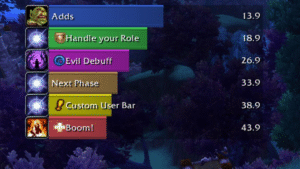
    Every raider uses either BigWigs or DBM (Deadly Boss Mods). These addons provide timers, alerts, sounds, and warnings for boss mechanics in raids and dungeons.

    • BigWigs → lighter, modular, highly customizable
    • DBM → more “out of the box,” easier for casual players

    Whichever you choose, they massively improve boss awareness.


    5. Postal – Mailbox Quality of Life

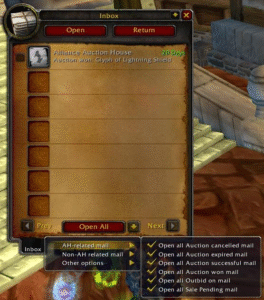
    Postal makes mailing items effortless. It adds features like mass mail opening, remembering names, auto-filling items, and single-click operations — perfect for auction house users and alts.

    This is one of those addons you don’t think about until you try it, and then you can’t live without it.


    6. Details! – Damage Meter

    Details! is the gold standard for damage meters. It’s lightweight, flexible, and shows real-time DPS, HPS, interrupts, threat, dispels, deaths, and more. It also integrates beautifully with modern UI layouts.

    Perfect for raiders, dungeon runners, and anyone who wants to track performance.


    7. Plater or KuiNameplates – Nameplate Enhancements

    A good nameplate addon is essential for visibility and combat awareness. The two kings are:

    • Plater – extremely customizable, fantastic for tanks and Mythic-like visibility
    • KuiNameplates – clean, lightweight, great default look

    Both are miles better than the default nameplates and help with tracking casts, debuffs, and threat.


    8. Prat – Chat Enhancer

    Prat greatly improves the chat window with timestamps, colors, class icons, URL copying, channel formatting, and more. It cleans up the chatbox without overwhelming it with unnecessary fluff.

    If you type in chat often, or you want your UI to look polished, Prat is a must-have.


    9. WeakAuras – Advanced Tracking

    WeakAuras is easily the most powerful addon in the game. You can track cooldowns, buffs, debuffs, consumables, boss timers, procs, combo points, resources — absolutely everything.

    It’s optional for casual players, but for raiders, it’s become a standard part of the UI.


    10. Leatrix Plus – Quality of Life Suite

    Leatrix Plus bundles tons of convenience features into one addon: auto-selling greys, auto-repairing, faster loot, skipping dialogue, improving the map, camera tweaks, and more.

    If you only install one QoL addon, make it this one.


    Bonus: Optional Addons Worth Considering

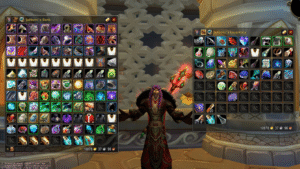
    • AtlasLootClassic – Loot tables for raids, dungeons, PvP
    • OmniCC – Cooldown numbers on abilities
    • TullaCC – Lightweight OmniCC alternative
    • GatherMate2 – Herbs, ore, fishing nodes on the map
    • ElvUI (UI overhaul) – for players who want a “total UI transformation”


    Final Thoughts

    These 10 addons represent the best combination of performance, popularity, and utility across all versions of WoW Classic. Whether you’re a new player or a veteran preparing for raids, this selection will dramatically improve your gameplay experience.

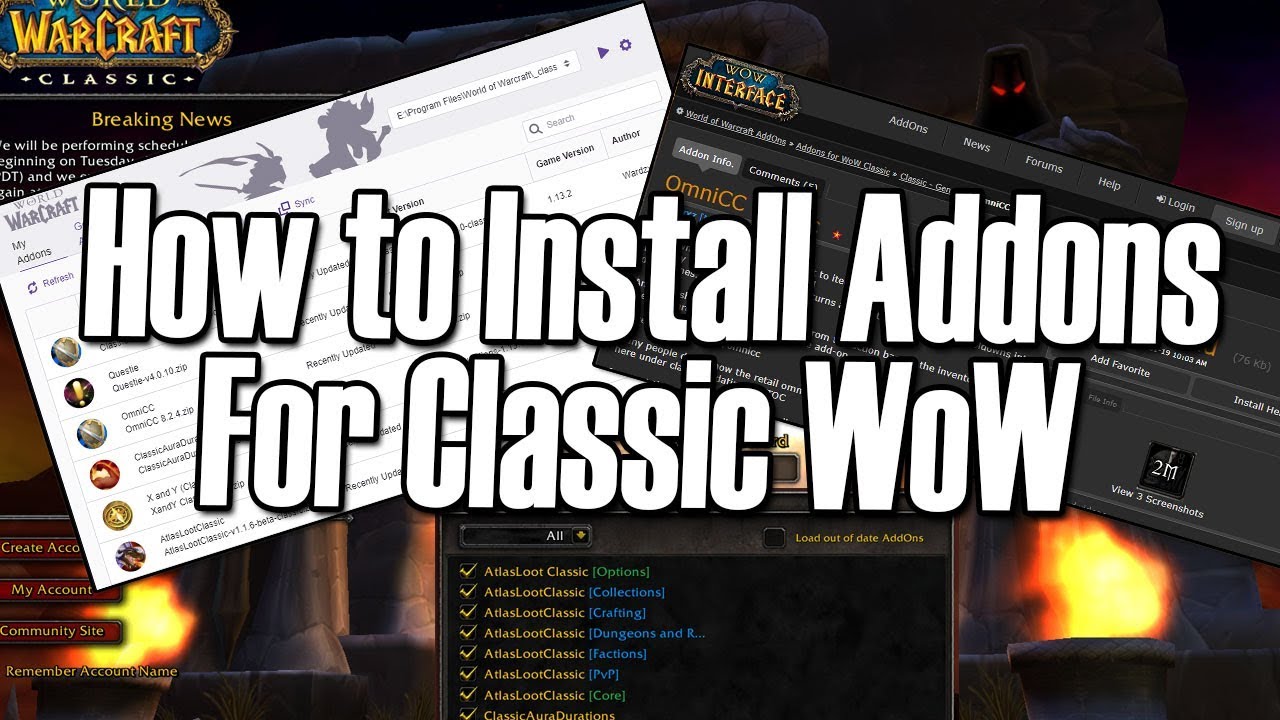
    Want to know exactly where to put these addons and how to install them step by step? Check out our guide: How to Manually Install Addons in WoW Classic.

  • How to Manually Install Addons in WoW Classic

    How to Manually Install Addons in WoW Classic

    Whether an addon is not available on your favorite manager, recently updated by the author, or hosted on a different website, sometimes you need to install it manually. The process is simple, but the correct folder path depends on your version of World of Warcraft Classic.

    This guide will walk you through downloading, extracting, installing, and enabling addons across all Classic editions: Vanilla, Season of Discovery, TBC, Wrath, and Cata Classic.


    Step 1 – Download the Addon

    Most addons come in a .zip file. Download it from a trusted source (CurseForge, GitHub, WoWClassicUI, author’s website).

    i

    Always check the version

    Make sure the addon supports your Classic version (Vanilla / SoD / TBC / Wrath / Cata). Many addons publish separate downloads.


    Step 2 – Extract the Addon Folder

    Once downloaded, right-click the .zip file and select:

    • Extract All… (Windows)
    • Extract Here (WinRAR/7-Zip)
    • Archive Utility (macOS)

    You should now see one or more addon folders (e.g., Leatrix_Plus, AtlasLootClassic, WeakAuras, etc.).

    i

    Important

    Avoid double-nested folders. The correct structure is:
    World of Warcraft\__classic__\Interface\AddOns\AddonName\AddonName.toc


    Step 3 – Place the Addon in the Correct Folder

    Move the addon folders into your Classic AddOns directory. The exact path depends on your version:

    📌 WoW Classic (Era / SoD)

    World of Warcraft\_classic_era\Interface\AddOns

    📌 TBC / Wrath / Cata Classic

    World of Warcraft\_classic_\Interface\AddOns

    📌 Windows Default Install Location

    C:\Program Files (x86)\World of Warcraft\_classic_\Interface\AddOns

    📌 Windows (Battle.net Custom Location)

    D:\Games\World of Warcraft\_classic_\Interface\AddOns

    📌 macOS

    /Applications/World of Warcraft/\_classic_\Interface/AddOns

    i

    It must be AddOns (capital A and O)

    WoW is case-sensitive on certain systems. The folder must be exactly named AddOns.


    Step 4 – Enable Addons In-Game

    Launch World of Warcraft and on the Character Select Screen, click:

    • AddOns (bottom-left corner)
    • Make sure the addon is listed and checked
    • Check “Load out of date AddOns” if necessary

    i

    If the addon doesn’t appear

    It means the folder is in the wrong location or you have an extra nested folder layer inside the zip. Check again!


    Step 5 – Updating Addons Manually

    To update the addon later, simply:

    • Download the new version
    • Extract it
    • Replace the old folder in AddOns

    You can safely overwrite the files — no need to delete the old version first.


    Common Problems & Fixes

    • The addon doesn’t show in-game: Wrong folder path or extra nested folder.
    • “Out of date” warning: Check Load out of date AddOns.
    • Multiple folders included: Some addons include libraries; install all of them.
    • Downloaded source code instead of release: On GitHub, always download the Releases section.


    Extra

    Here’s a ready-to-use PowerShell script that helps you find automatically find (and open) your WoW Classic AddOns folder.

    It:

    • Detects Classic Era (_classic_era) and TBC/Wrath/Cata Classic (_classic_)
    • Lets the user choose if multiple installs are found
    • Creates the Interface\AddOns folder if missing
    • Opens the folder in File Explorer at the end

    <#
    .SYNOPSIS
      Detects the World of Warcraft Classic installation folder on Windows
      and opens the correct AddOns folder in Explorer.
    
    .NOTES
      Works with:
        - WoW Classic Era  ( _classic_era )
        - TBC / Wrath / Cata Classic ( _classic_ )
    
      Usage:
        - Right-click PowerShell -> "Run as administrator" (optional but recommended)
        - Run the script:
            .\Find-WoWClassicAddons.ps1
    #>
    
    [Console]::OutputEncoding = [System.Text.UTF8Encoding]::UTF8
    
    Write-Host "=== WoW Classic AddOns Folder Finder ===" -ForegroundColor Cyan
    Write-Host ""
    
    # Common base paths where WoW is usually installed
    $possibleBasePaths = @(
        "$env:ProgramFiles(x86)\World of Warcraft",
        "$env:ProgramFiles\World of Warcraft",
        "$env:SystemDrive\Games\World of Warcraft",
        "$env:SystemDrive\World of Warcraft"
    ) | Where-Object { Test-Path $_ }
    
    if (-not $possibleBasePaths) {
        Write-Warning "No default World of Warcraft install paths found."
        Write-Host "If you installed WoW in a custom location, please enter it manually."
        $manualBase = Read-Host "Enter your World of Warcraft folder path (e.g. D:\Games\World of Warcraft)"
        if (-not (Test-Path $manualBase)) {
            Write-Error "The path you entered does not exist. Exiting."
            return
        }
        $possibleBasePaths = @($manualBase)
    }
    
    # Find Classic install folders inside each base path
    $candidates = @()
    
    foreach ($base in $possibleBasePaths) {
        # Classic Era
        $classicEraPath = Join-Path $base "_classic_era"
        if (Test-Path $classicEraPath) {
            $candidates += [PSCustomObject]@{
                Type = "Classic Era"
                Path = $classicEraPath
            }
        }
    
        # TBC / Wrath / Cata Classic
        $classicPath = Join-Path $base "_classic_"
        if (Test-Path $classicPath) {
            $candidates += [PSCustomObject]@{
                Type = "Classic"
                Path = $classicPath
            }
        }
    }
    
    if (-not $candidates) {
        Write-Error "No WoW Classic installation found under:"
        $possibleBasePaths | ForEach-Object { Write-Host "  - $_" }
        Write-Host ""
        Write-Host "Make sure you pointed to the correct 'World of Warcraft' folder."
        return
    }
    
    # If multiple Classic installs are found, let the user pick one
    $selectedInstall = $null
    
    if ($candidates.Count -eq 1) {
        $selectedInstall = $candidates[0]
        Write-Host "Detected WoW $($selectedInstall.Type) at:" -ForegroundColor Green
        Write-Host "  $($selectedInstall.Path)"
    } else {
        Write-Host "Multiple WoW Classic installations found:" -ForegroundColor Yellow
        for ($i = 0; $i -lt $candidates.Count; $i++) {
            $idx = $i + 1
            Write-Host "[$idx] $($candidates[$i].Type) -> $($candidates[$i].Path)"
        }
    
        do {
            $choice = Read-Host "Select the installation to use (1-$($candidates.Count))"
            [bool]$ok = [int]::TryParse($choice, [ref]$null) -and
                        ($choice -ge 1) -and ($choice -le $candidates.Count)
            if (-not $ok) {
                Write-Host "Invalid choice. Please enter a number between 1 and $($candidates.Count)." -ForegroundColor Red
            }
        } while (-not $ok)
    
        $selectedInstall = $candidates[[int]$choice - 1]
        Write-Host "Selected WoW $($selectedInstall.Type) at:" -ForegroundColor Green
        Write-Host "  $($selectedInstall.Path)"
    }
    
    # Build AddOns path: <WoWClassic>\Interface\AddOns
    $interfacePath = Join-Path $selectedInstall.Path "Interface"
    $addonsPath    = Join-Path $interfacePath "AddOns"
    
    # Ensure folders exist
    if (-not (Test-Path $interfacePath)) {
        Write-Host ""
        Write-Host "Creating Interface folder:" -ForegroundColor Yellow
        Write-Host "  $interfacePath"
        New-Item -ItemType Directory -Path $interfacePath | Out-Null
    }
    
    if (-not (Test-Path $addonsPath)) {
        Write-Host ""
        Write-Host "Creating AddOns folder:" -ForegroundColor Yellow
        Write-Host "  $addonsPath"
        New-Item -ItemType Directory -Path $addonsPath | Out-Null
    }
    
    Write-Host ""
    Write-Host "Your WoW Classic AddOns folder is:" -ForegroundColor Cyan
    Write-Host "  $addonsPath"
    Write-Host ""
    
    # Ask to open Explorer
    $open = Read-Host "Open this folder in Explorer? (Y/N)"
    if ($open -match '^(y|yes)$') {
        Start-Process explorer.exe $addonsPath
    }
    else {
        Write-Host "You can navigate to this folder manually if you prefer." -ForegroundColor DarkGray
    }
    
    Write-Host ""
    Write-Host "Done. You can now copy your addon folders into the AddOns directory above." -ForegroundColor Green


    You’re Ready to Customize Your UI!

    With your addons installed, you can now fine-tune your interface depending on your playstyle. If you’re looking for inspiration, check out our curated selections:

    If you’d like us to create a guide for your favorite addon, feel free to ask!

Index